> For the complete documentation index, see [llms.txt](https://docs.hashsphere.com/llms.txt). Markdown versions of documentation pages are available by appending `.md` to page URLs; this page is available as [Markdown](https://docs.hashsphere.com/operations/hashsphere-console.md).
# HashSphere Console
How to integrate and use the HashSphere Console
### Overview
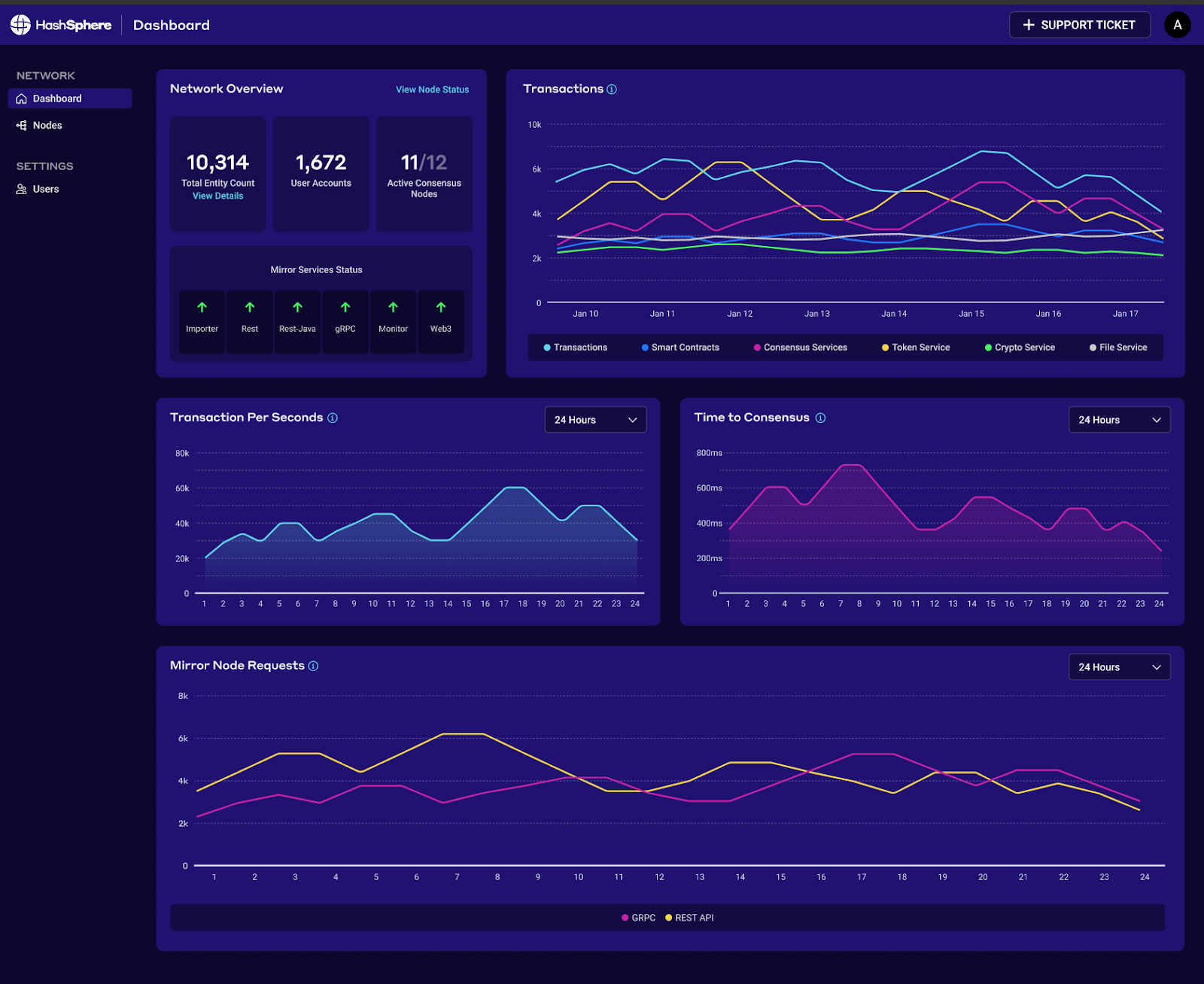
The HashSphere Console provides visibility into platform health and throughput. It is designed for DevOps and technical support teams.
You can view:
* Node and service status
* Transaction volume by type
* Transactions per second (TPS)
* Time to consensus
### Console setup
The HashSphere team sets up the Console. You configure your corporate identity provider (IdP) to grant access.
Your IdP must support OIDC. If it does not, coordinate an alternative during onboarding.
1. Create a new group within your IdP that will contain all the users who should have access to the Console. You could also reuse an existing group if you already have one that’s suitable.
2. Update the configuration of your IdP with the redirect URLs provided for your environment.
```
OIDC_REDIRECT_URL=https://iob.hashsphere.info/login/oidc/callback/
OIDC_LOGOUT_CALLBACK_URL=https://iob.hashsphere.info/login#
# This URL must also be added to the IdP configuration under "Allowed Logout URLs".
REDIRECT_POST_LOGIN=https://iob.hashsphere.info/dashboard/
```
{% hint style="info" %}
Replace `iob.hashsphere.info` with your Console domain. The HashSphere team will confirm the correct values during onboarding.
{% endhint %}
3. Share the following values with the HashSphere team:
```
OIDC_CLIENT_ID
```
```
OIDC_CLIENT_SECRET
```
```
OIDC_ISSUER_URL
```
```
OIDC_AUDIENCE
```
```
OIDC_SCOPE
```
### Adding users
To grant access, add users to the IdP group created for Console access.
Users also need network access to the HashSphere endpoints. Without that, they will not reach the Console login screen.
### Console data: dashboard
The Dashboard is the primary landing screen for the Console and contains overview information about the health and utilization of the environment.
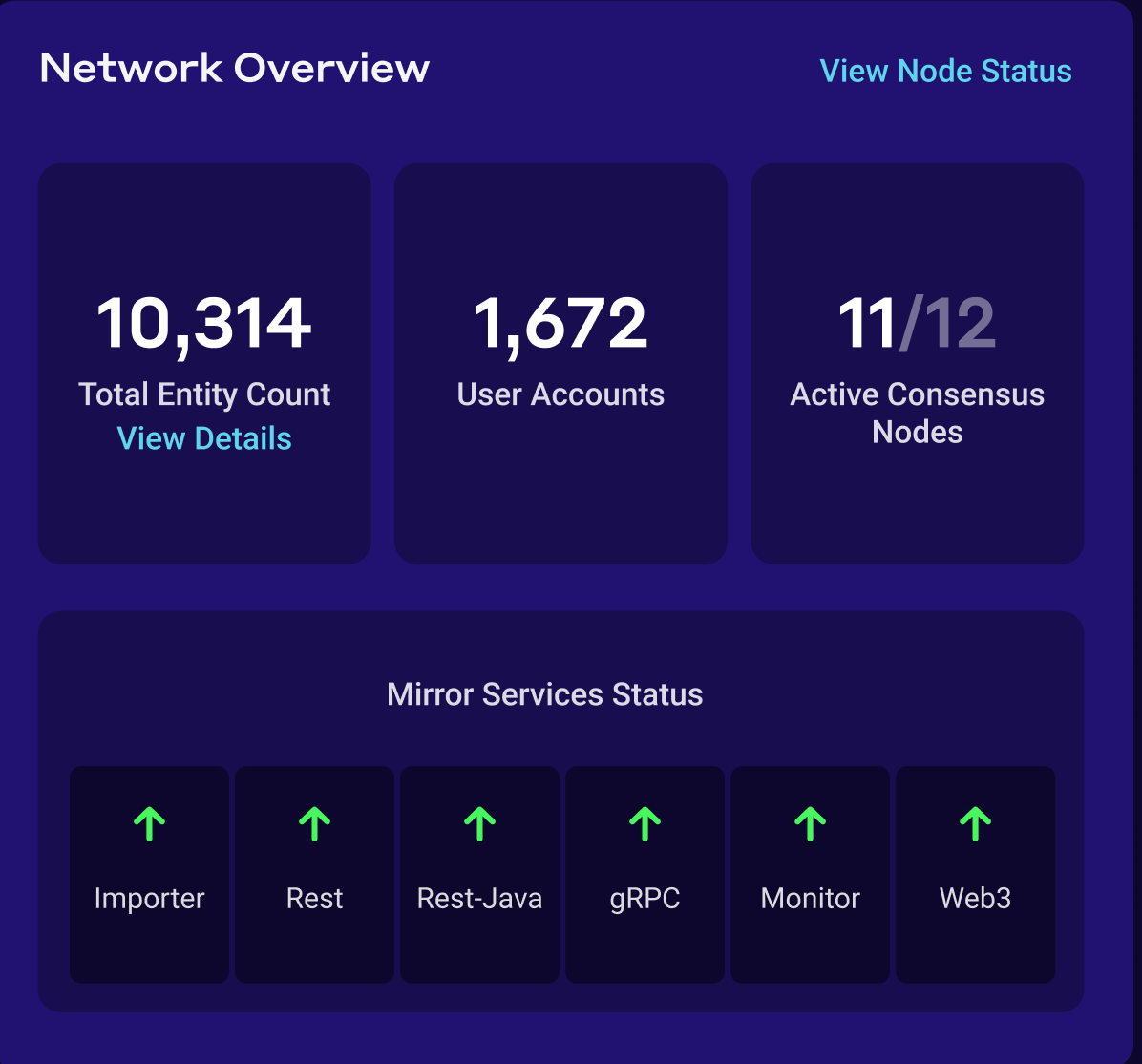
#### Network overview
This screen includes:
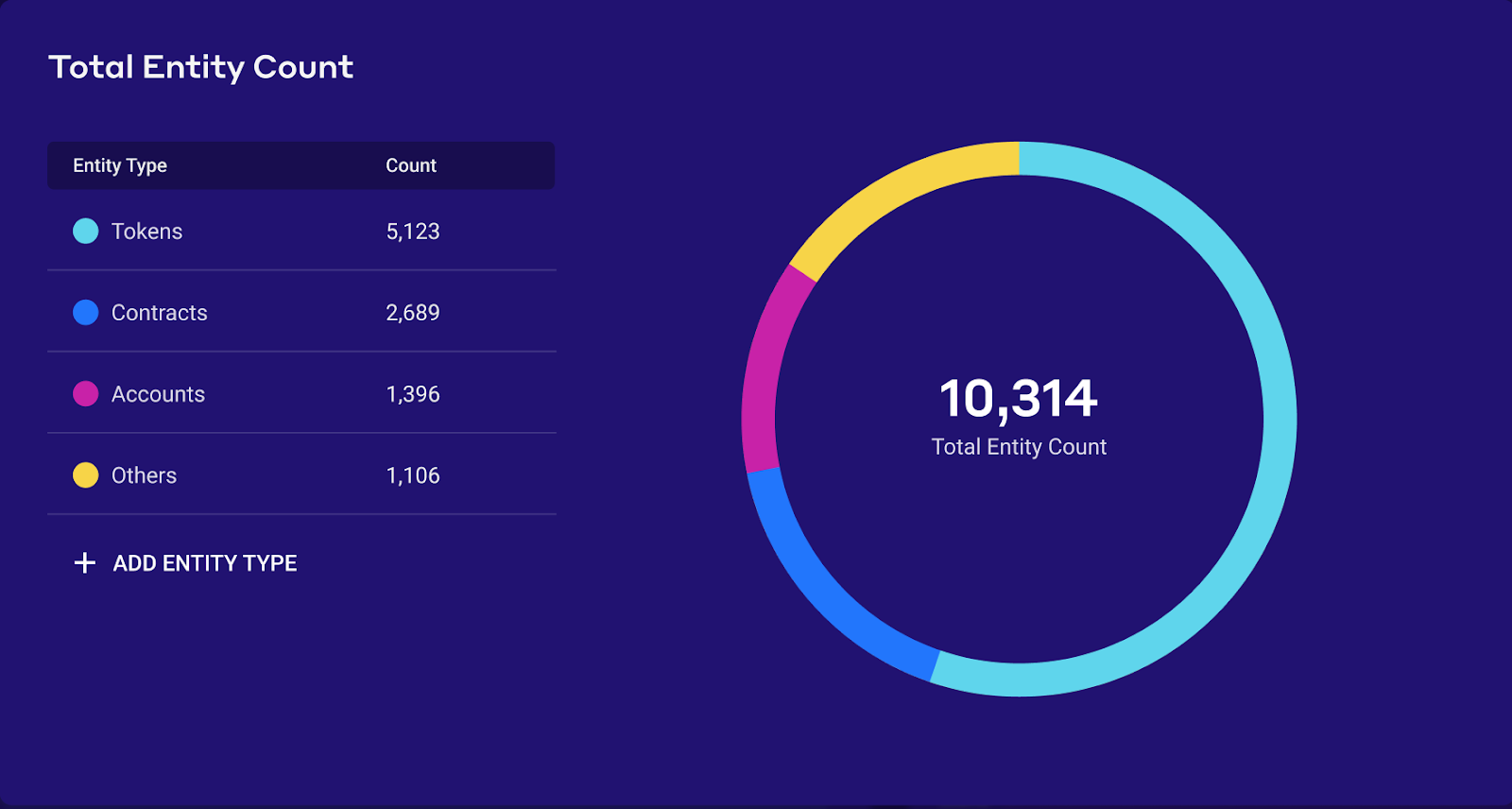
* Total number of entities created. Entity limits depend on node sizing.
* A breakdown of commonly used entity types via **View Details**.
* Total user accounts created.
* Active consensus nodes shown as `active/total`.
* Mirror service health status.
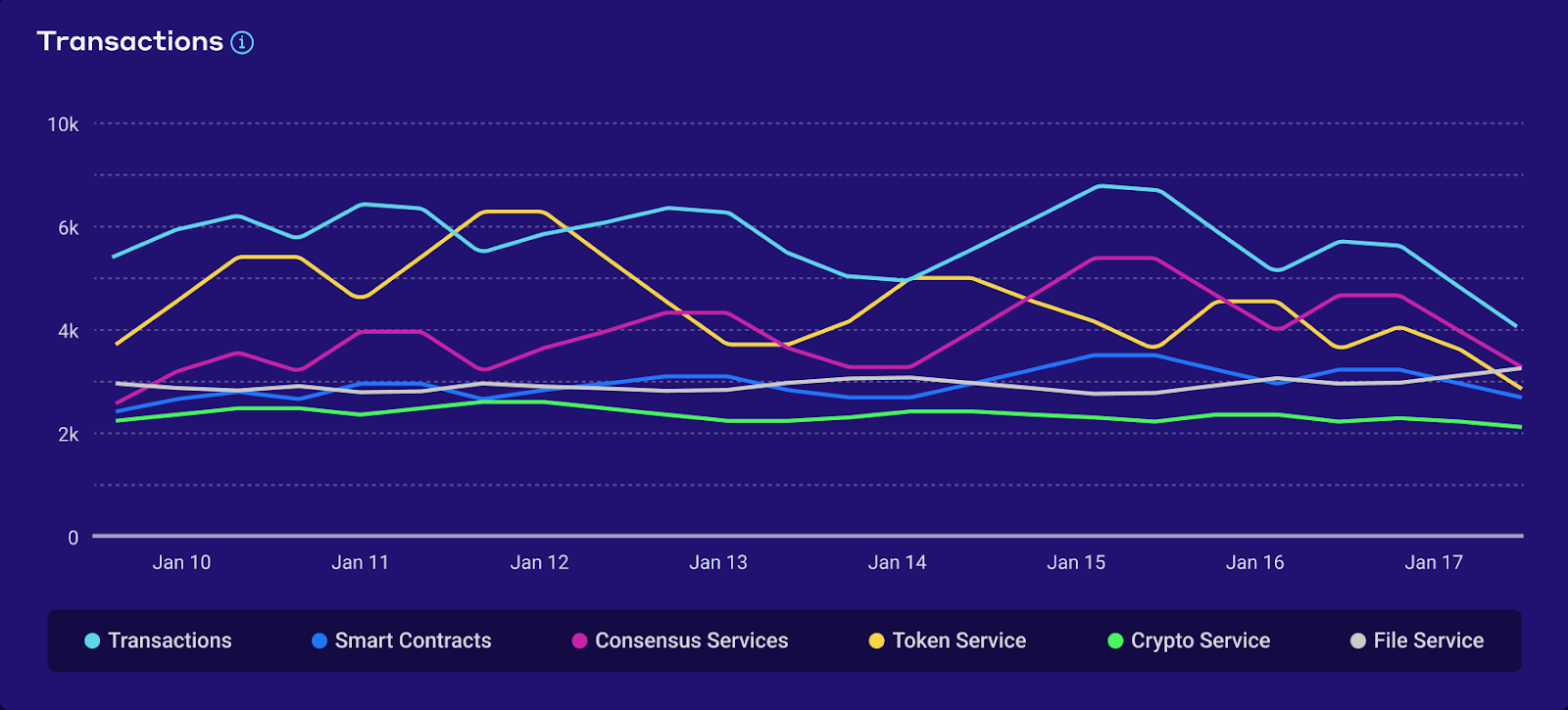
#### Transactions
This view shows transaction volumes across a selected time window. It includes totals and a breakdown by transaction type.
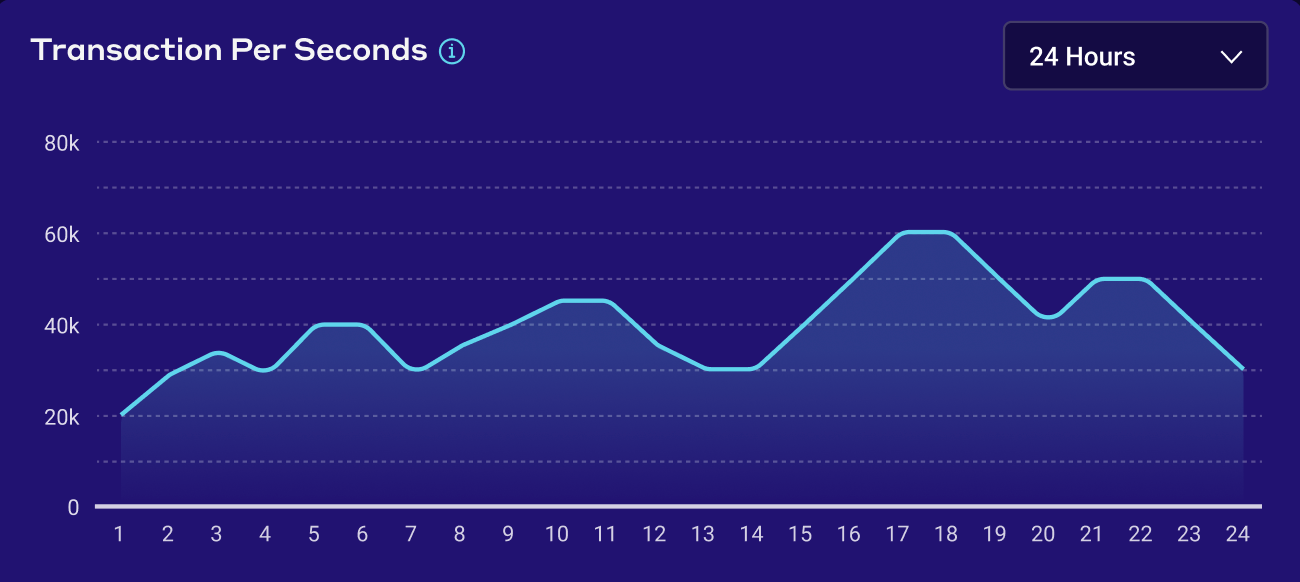
#### Transactions per second
This view shows transaction processing speed across a selected time window.
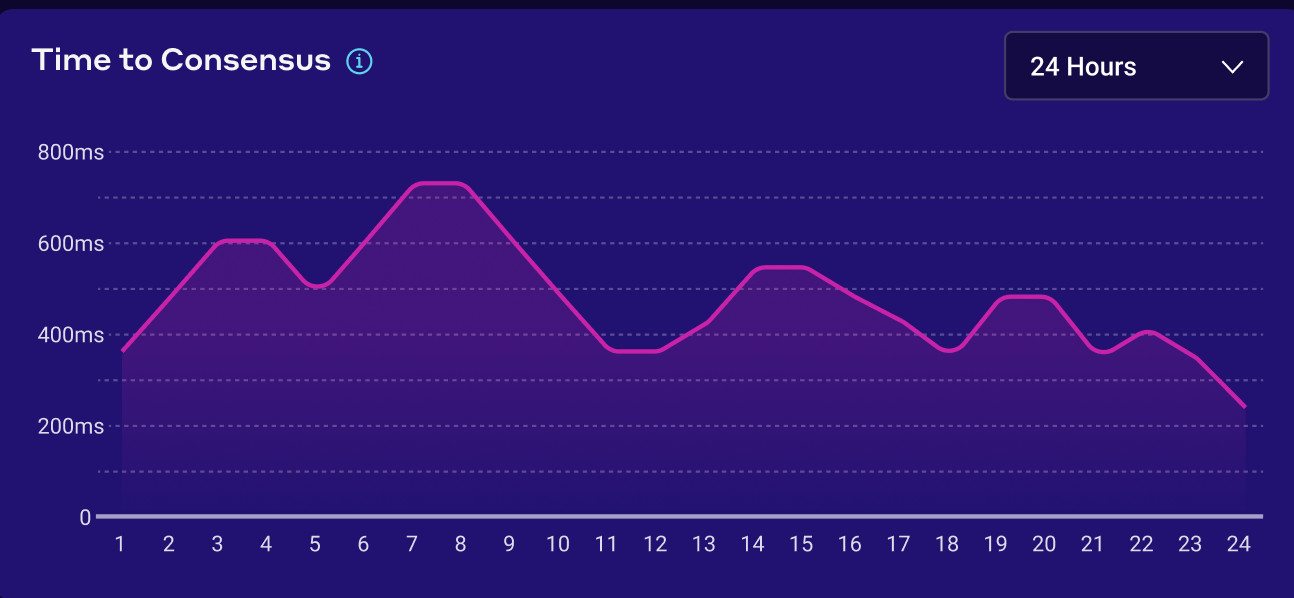
#### Time to consensus
This screen shows the amount of time in milliseconds between the time that a transaction is submitted to the network, and when it has been accepted by all the consensus nodes. The view can be customized across multiple time windows.
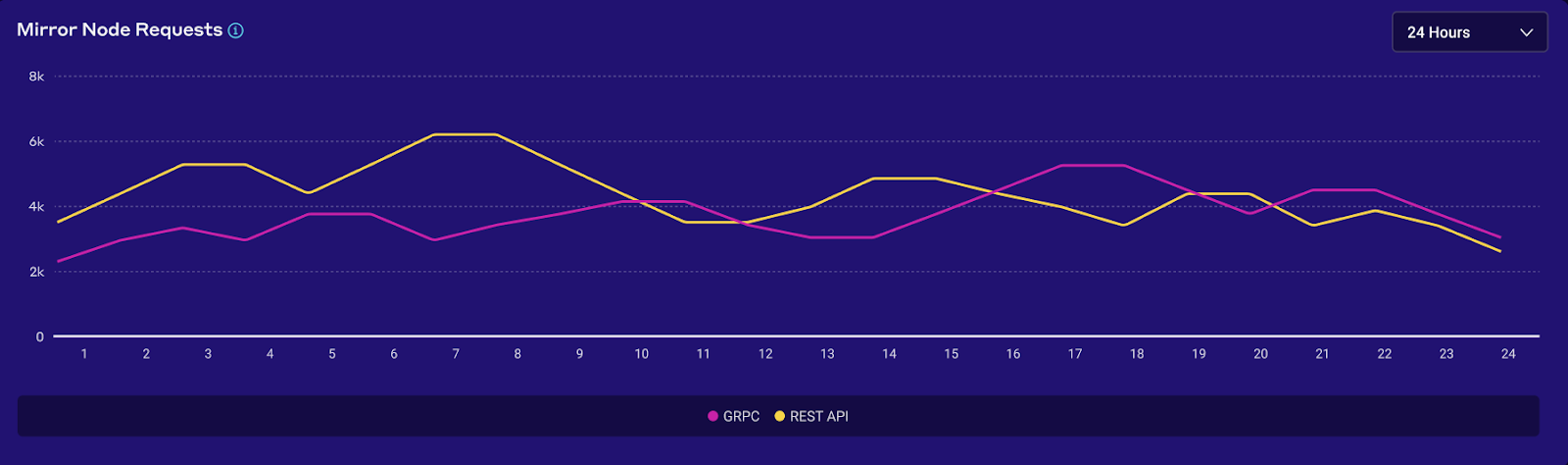
#### Mirror node requests
This view shows request volume across Mirror Node services.
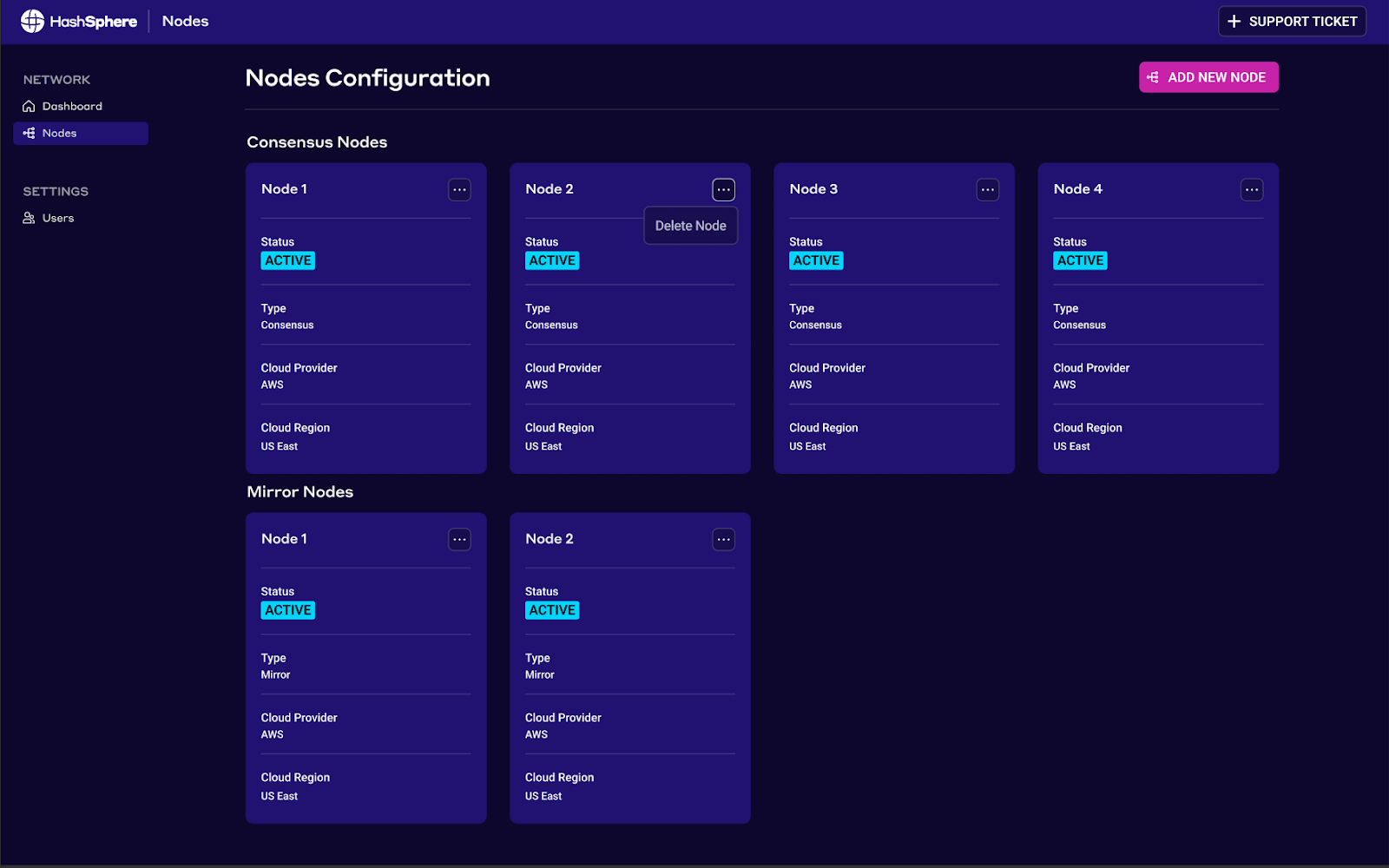
### Console data: nodes
The Nodes view shows details for each configured consensus and mirror node, including:
* Node Status (active, inactive)
* Node Type (Consensus, Mirror)
* Cloud Provider
* Cloud Region
---
# Agent Instructions
This documentation is published with GitBook. GitBook is the documentation platform designed so that both humans and AI agents can read, navigate, and reason over technical content effectively. Learn more at gitbook.com.
## Querying This Documentation
If you need additional information that is not directly available in this page, you can query the documentation by asking a question.
Perform an HTTP GET request on the following URL with the `ask` and `goal` query parameters:
```
GET https://docs.hashsphere.com/operations/hashsphere-console.md?ask=&goal=
```
`ask` is the immediate question: it should be specific, self-contained, and written in natural language.
`goal` is what the user is ultimately trying to achieve, the reason they need the answer. Sharing it helps GitBook give you a better, more relevant answer. A goal is most helpful when it describes the outcome the user wants rather than restating the question. For example, with `ask=how do I create an API token`, a goal like `automate deployments from our CI pipeline` lets GitBook tailor the answer to that use case.
The response will contain a direct answer to the question and relevant excerpts and sources from the documentation.
Use this mechanism when the answer is not explicitly present in the current page, you need clarification or additional context, or you want to retrieve related documentation sections.